Playback
One library. Real playback controls.
Import local videos and photos. Play a clip, apply a filter, change the speed, tune the sound, and lock the screen while you watch.
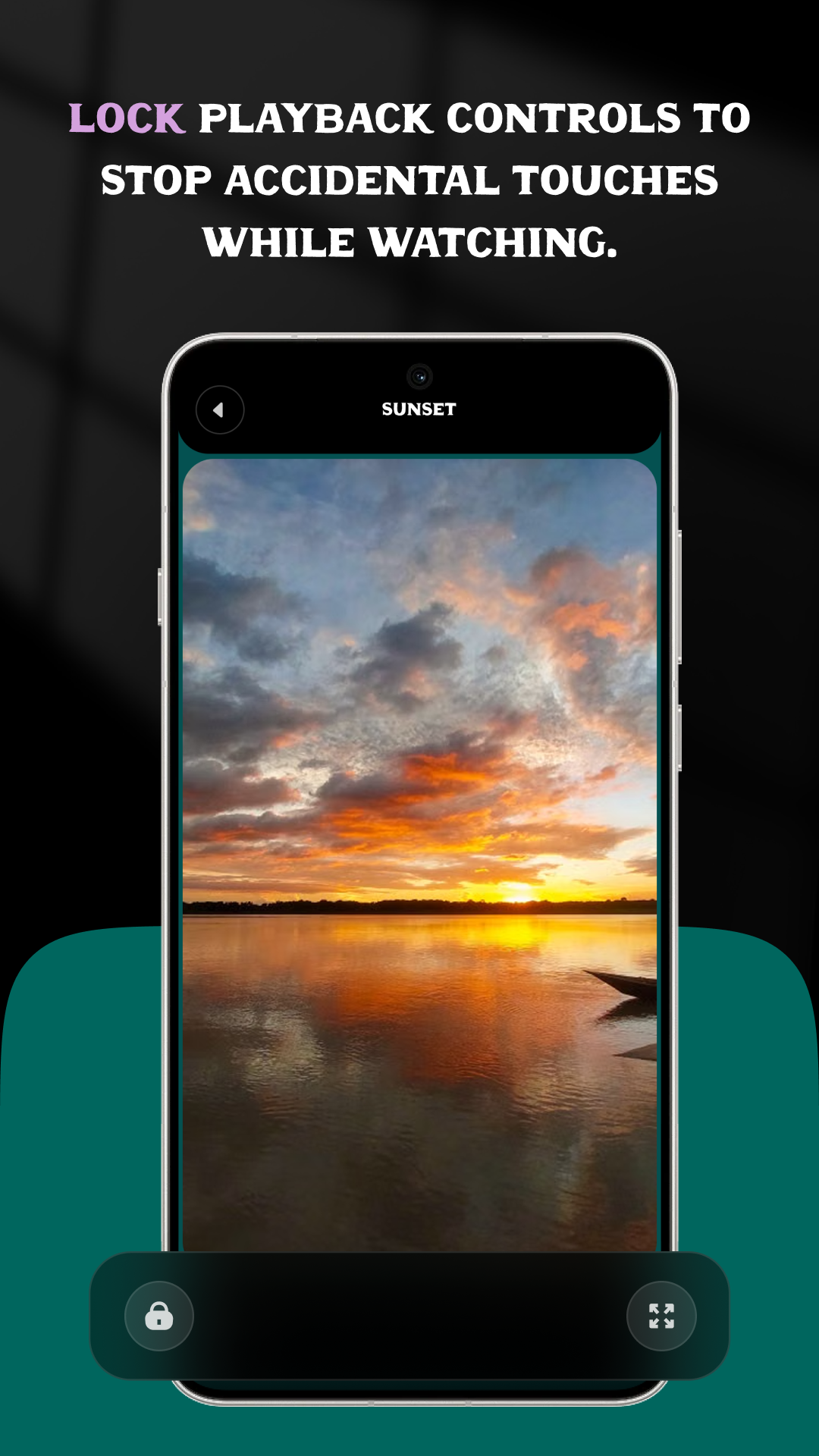
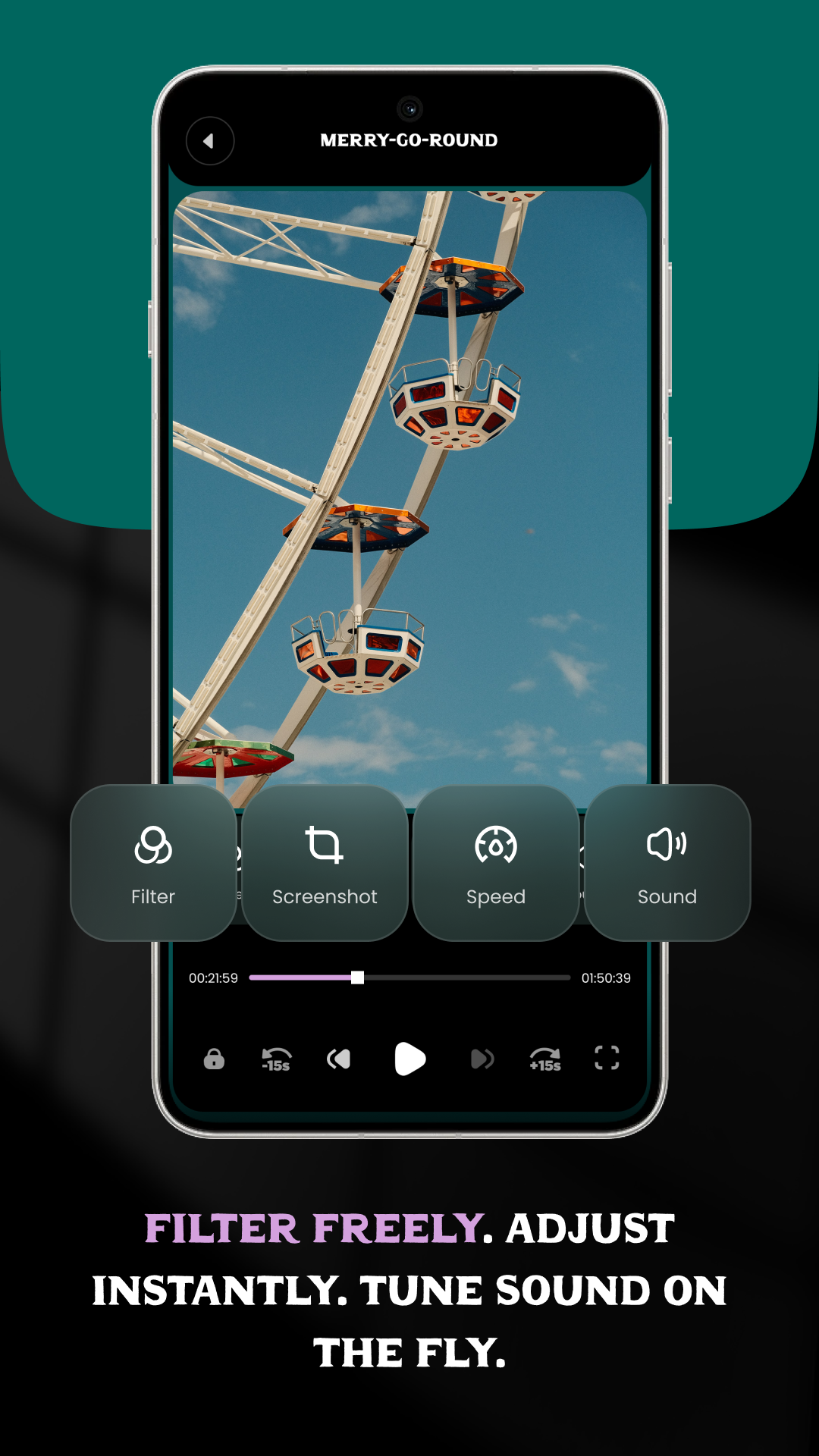
Apply a filter while the clip plays. Screenshot, speed, and sound sit on the same player.
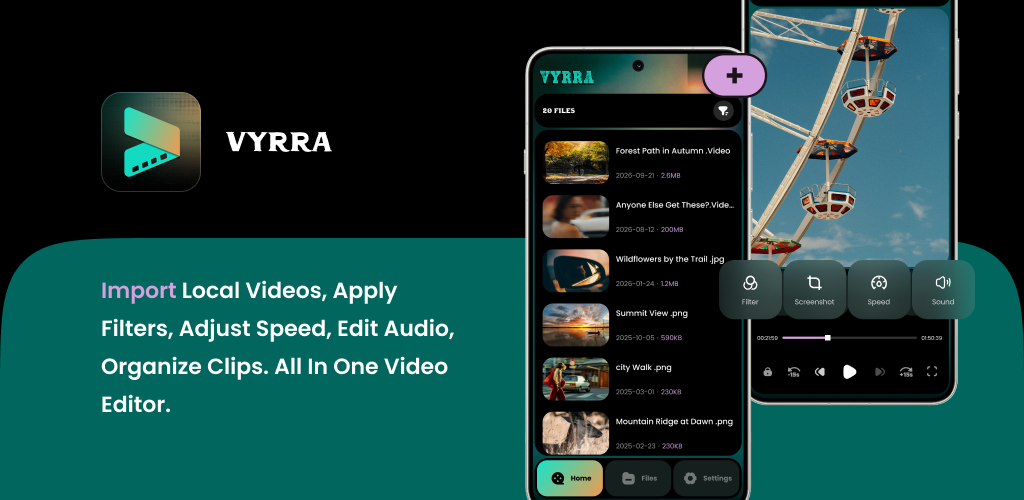
Library
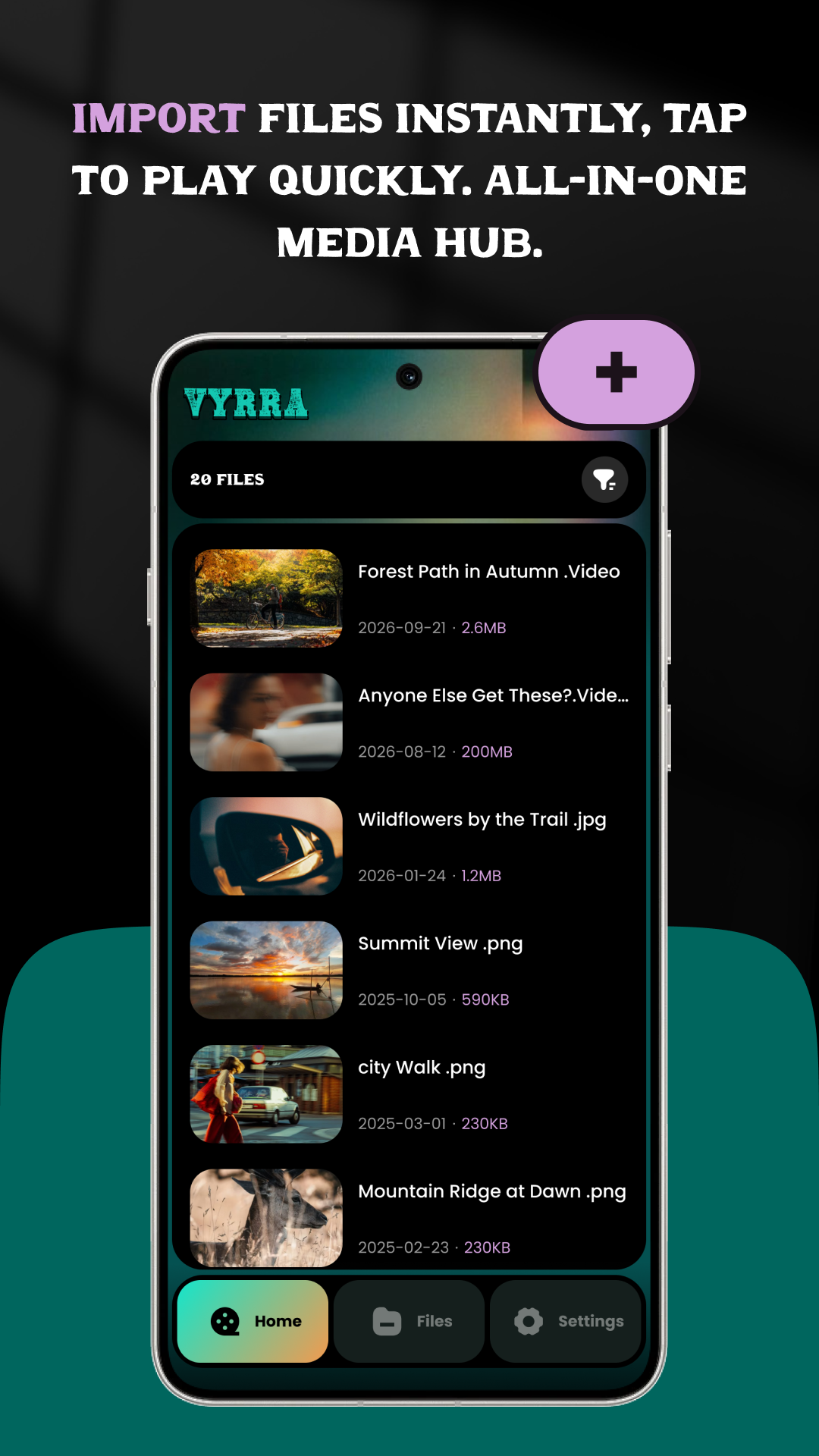
Home is the list.
The lilac add button imports a local video or photo.
- Import. Bring in a file you already have, or record a video or photo in the app.
- Read the row. Each file shows its name, the date, and the size.
- Open it. Tap a clip and it plays.
Clips stay on your device unless you turn on account sync. The camera and microphone are used only while you are capturing. More, on the home screen, can show every video or delete videos in a batch.
Files
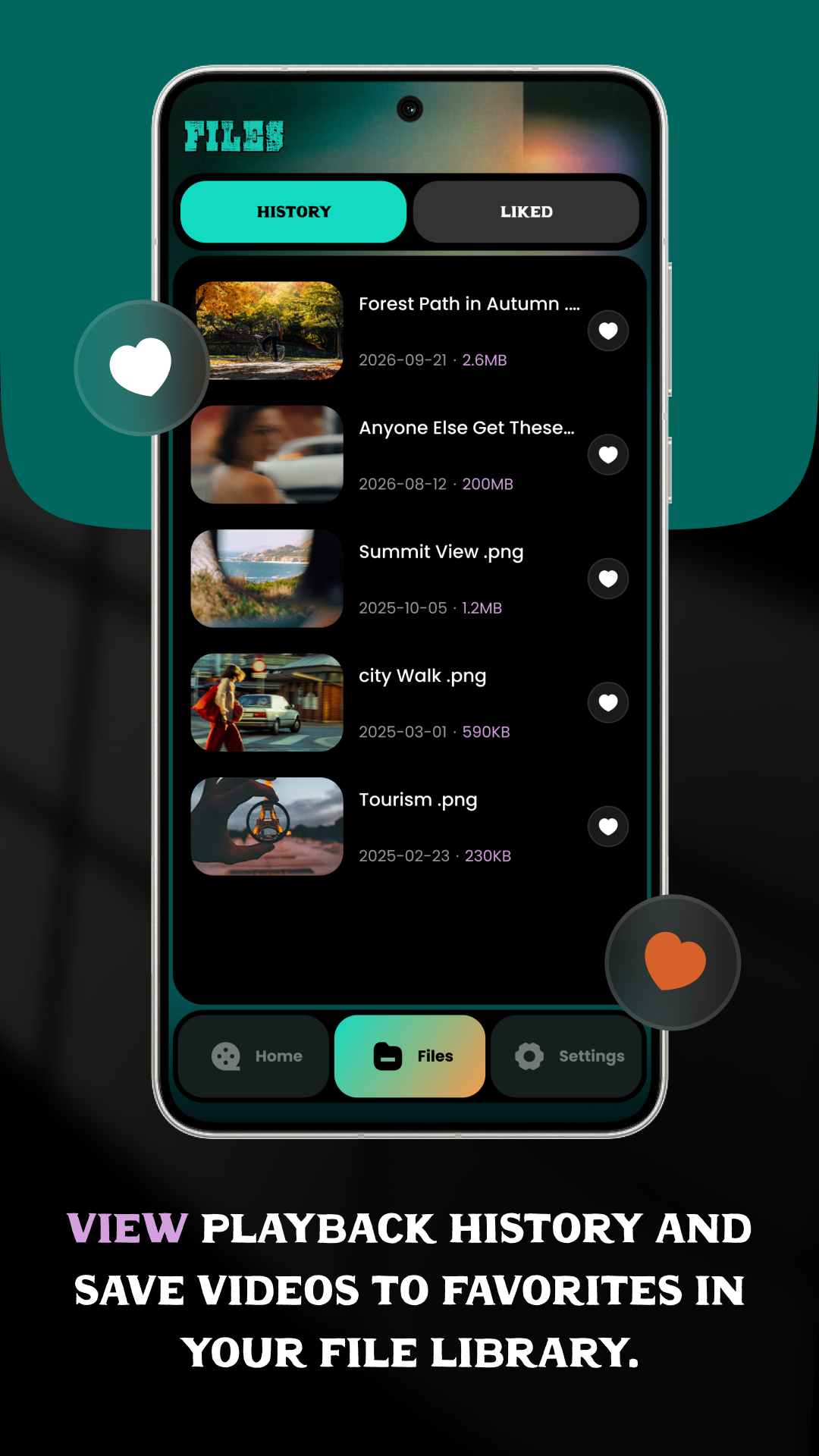
History and Liked stay in Files.
Watch a clip, then find it again under History. Save one to Liked and it stays in the library.
Home, Files, and Settings sit on the bottom bar.
Get Vyrra on Google Play.
One library, then the player: filter, speed, sound, and lock.
Contact
Write to Vyrra.
Questions about the app, privacy, or these terms. Email gets a reply within 15 business days.